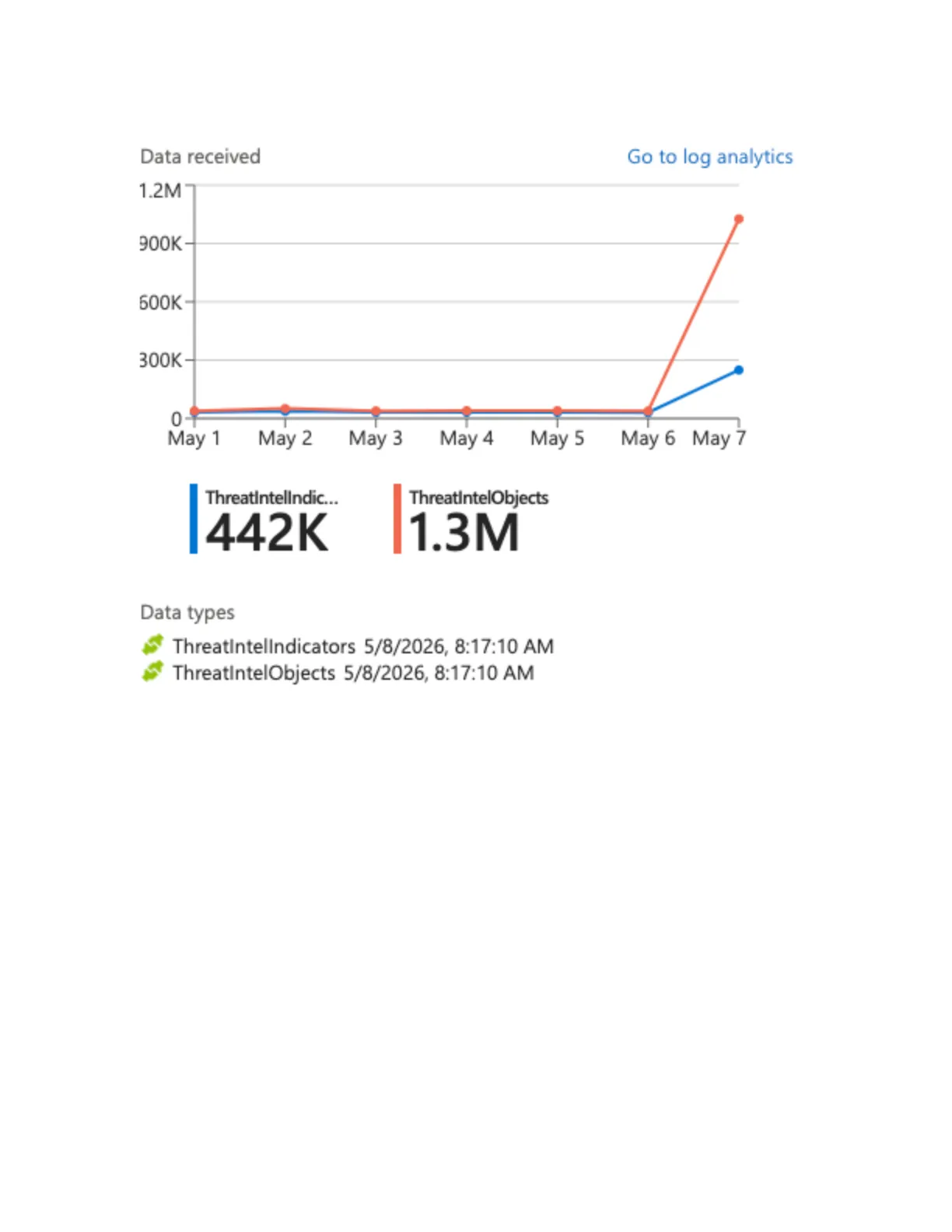
Below you will find a guide on how to connect PrecisionSec Threat Intelligence indicators to your Microsoft Sentinel Threat Intelligence blade via STIX/TAXII.
Credentials required. If you have not yet received evaluation credentials, please request access.
These instructions follow the Microsoft TAXII connector documentation.
Step 1 — Install the Threat Intelligence (New) solution
- From the Azure or Defender Portal, go to Microsoft Sentinel.
- Navigate to the Content Hub. In the Defender Portal, this is under Content management > Content Hub.
- Search for or scroll to the Threat Intelligence (New) solution.
- Select the solution and click Install in the panel on the right.
This installs the bundled Threat Intelligence – TAXII data connector.
Step 2 — Configure the TAXII connector
-
In the Content Hub, still under the Threat Intelligence (New) solution, scroll down to Threat intelligence – TAXII (approximately 55 items from the top of the sub-items list).
-
Select Threat intelligence – TAXII and click Open Connector Page in the right panel.
-
In the Configuration section, enter the following:
Field Value Friendly name (for server) PrecisionSec-TAXII2-FeedAPI root URL https://opencti.precisionsec.com/taxii2/root/Collection ID 11ceb4b8-95c5-48c4-a242-3af679c9f785Username Your provided username Password Your provided password Import indicators At most one month old Polling frequency Once an hour 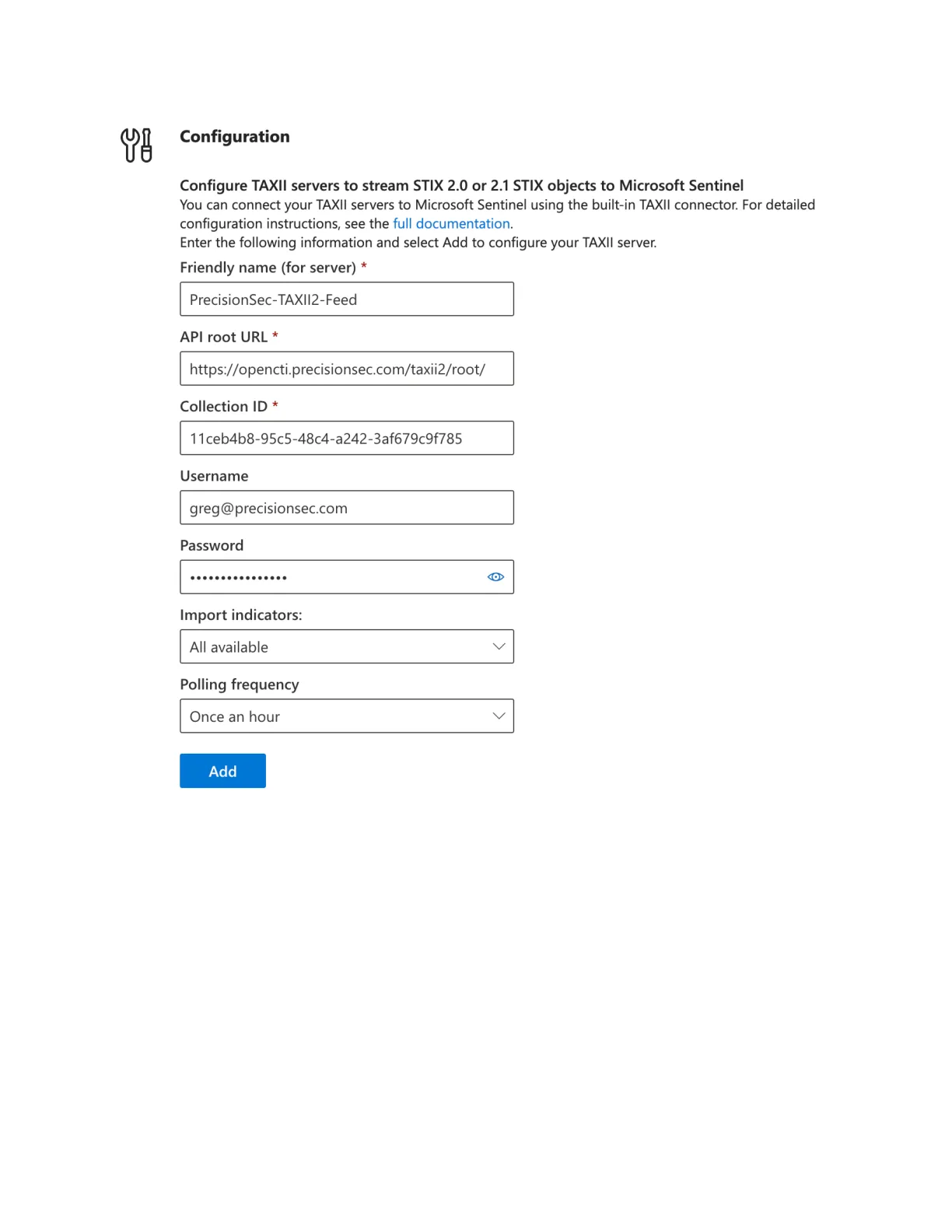
-
Click Add to begin indicator ingestion.
PrecisionSec threat intelligence indicators will start populating in the Sentinel Threat Intelligence graph shortly after.