These instructions are for connecting the PrecisionSec MISP Feed to your existing MISP Threat Sharing Platform installation.
Credentials required. If you have not yet received evaluation credentials, please request access.
-
Log in to your MISP instance.
-
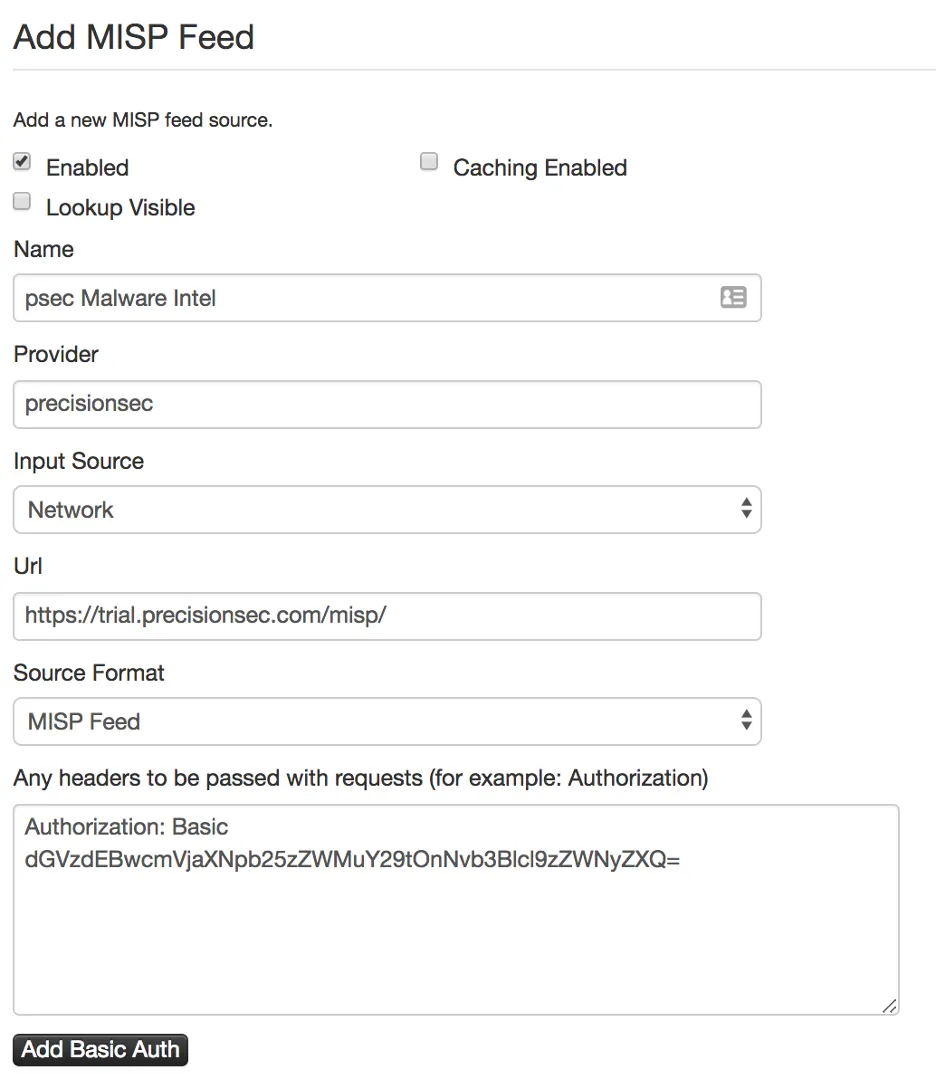
Navigate to Sync Actions → List Feeds and click Add Feed in the left sidebar to reach the Add MISP Feed page.
-
Click the Enabled check box.
-
In the Name field type “psec Malware Intel” or a name of your choosing.
-
In the Provider field type “PrecisionSec”.
-
Leave the Input Source as default “Network”.
-
Enter the MISP feed URL in the Url box:
https://trial.precisionsec.com/misp/- Do not attempt to visit the above URL directly. You will receive a 403 Forbidden error, which is expected.
-
Leave the Source Format as default “MISP Feed”.
-
Leave the Any headers… text box blank.
-
Click the Add Basic Auth button.
-
Enter the credentials you were provided in the Username and Password fields that appear.
-
Click Add basic auth header. An
Authorization: Basicheader should appear in the text box above. -
You can leave the Distribution and Default Tag fields as default or set them as appropriate to your organization.
-
Click the Add button.
-
You will be returned to the Feeds page. If you click the Enabled Feeds tab you should now see the feed in the list.
-
You can explore the events remotely by clicking the magnifying glass under the Actions column, or fetch the feed by clicking the circle icon with the down arrow.