These instructions are for connecting the PrecisionSec Threat Intelligence feed live stream to your existing OpenCTI instance by creating an OpenCTI Stream.
Credentials required. If you have not yet received evaluation credentials, please request access.
This guide follows the OpenCTI automated import documentation.
-
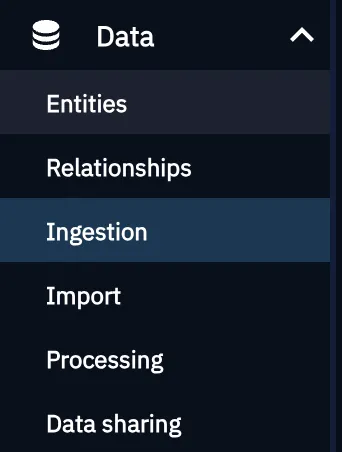
In the left navigation bar, go to Data → Ingestion.
-
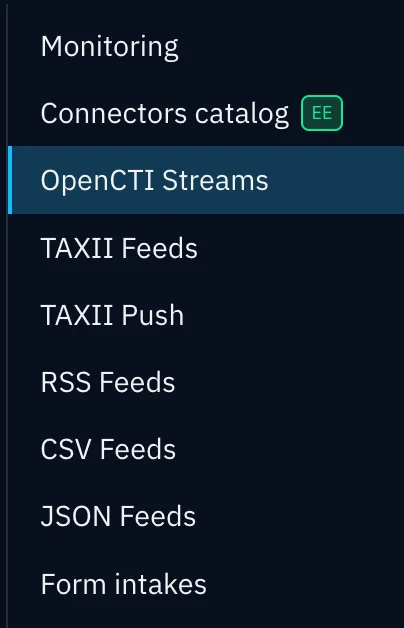
In the Ingestion navigation list, select OpenCTI Streams.
-
Click Create OpenCTI Stream at the top right of the OpenCTI Streams page. A fly-out panel titled Create an OpenCTI Stream appears.
-
In the Name field, enter
PrecisionSec Threat Intelligenceor a name of your choice. -
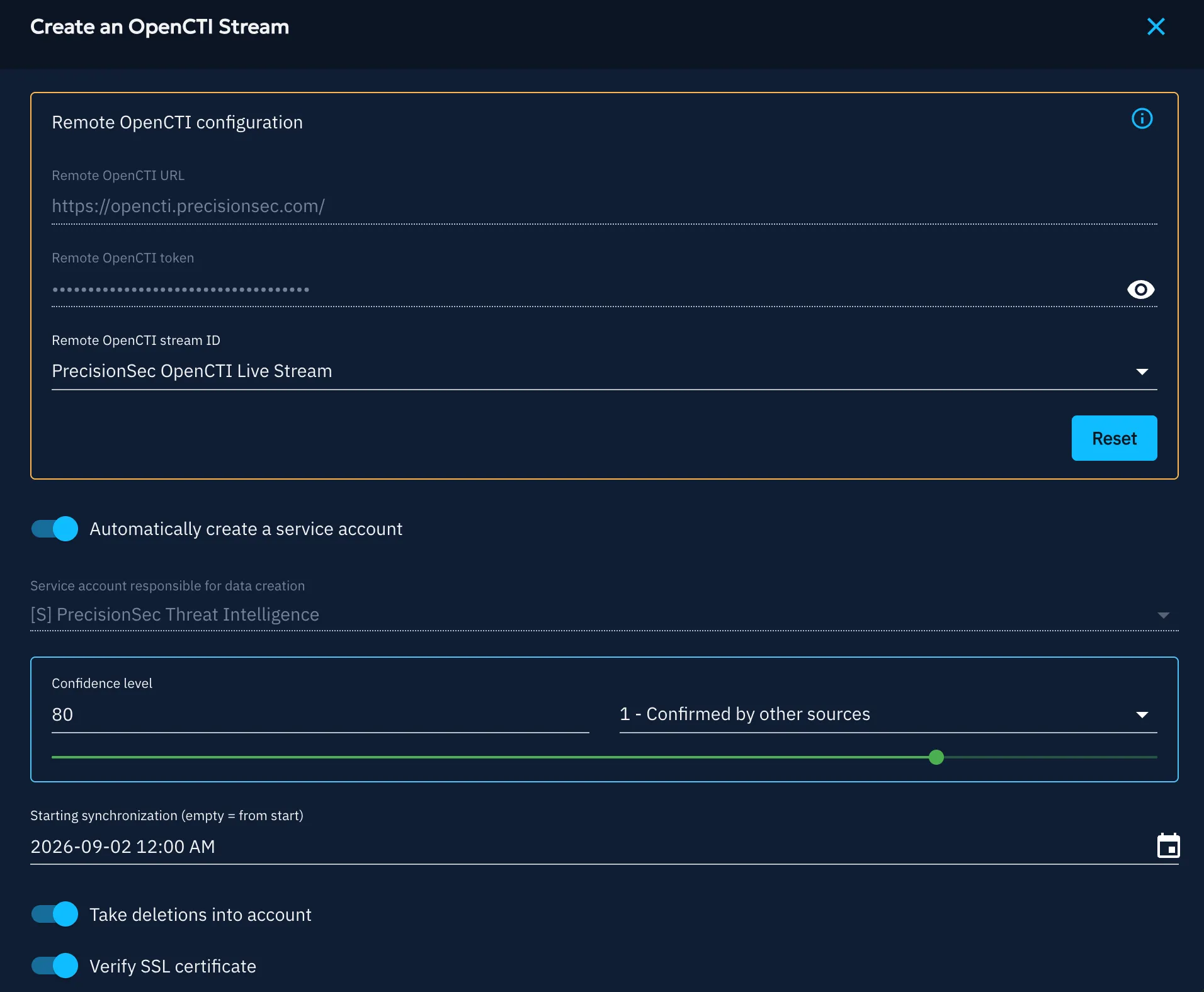
In the Remote OpenCTI URL field, enter
https://opencti.precisionsec.com/. -
In the Remote OpenCTI token field, enter the user token that PrecisionSec provided.
-
Click Validate. After a moment the button changes to Reset and the Remote OpenCTI stream ID dropdown appears, populated with PrecisionSec OpenCTI Live Stream. Select it.
-
Automatically create a service account: this controls how the imported data is attributed inside your platform. Pick one:
- Enable it and OpenCTI provisions a dedicated service account for this
stream. The Service account responsible for data creation field below
fills in automatically (shown as
[S]followed by the stream name) and is read-only. - Leave it off and set User responsible for data creation yourself to an existing OpenCTI user. Dedicating one user per source keeps attribution clear.
- Enable it and OpenCTI provisions a dedicated service account for this
stream. The Service account responsible for data creation field below
fills in automatically (shown as
-
Confidence level: raise this from its default of
50(3 - Possibly True) to80, the value PrecisionSec recommends for this feed. -
Set Starting synchronization to the current date and time so the stream ingests data published from that point forward. Leave it empty only if you want OpenCTI to backfill the entire stream history.
-
Enable Take deletions into account to remove data from your platform when it is deleted on the PrecisionSec stream. Data is not deleted if another source imported it previously.
-
Enable the Verify SSL certificate toggle.
-
Leave any remaining options at their defaults.
-
Click Verify. Verification can take a minute or more. When it succeeds, the Create button is enabled and turns blue. The completed panel looks similar to this:
-
Click Create. Once the stream is verified, you are returned to the Data → Ingestion → OpenCTI Streams page. Click the three dots next to the new stream entry and click Start.

-
When asked Do you want to start this OpenCTI stream?, click Start.

-
Verify the import is running. Go to Data → Ingestion → Monitoring. The dashboard reports connected workers, queued and processed bundles, read and write rates, and the total document count, and the figures climb as data flows in.

The Messages count on the stream entry also begins to climb as your OpenCTI instance ingests data.
Related guides
- STIX/TAXII Integration Guide if you would rather connect PrecisionSec as a TAXII2 collection than as a native live stream.