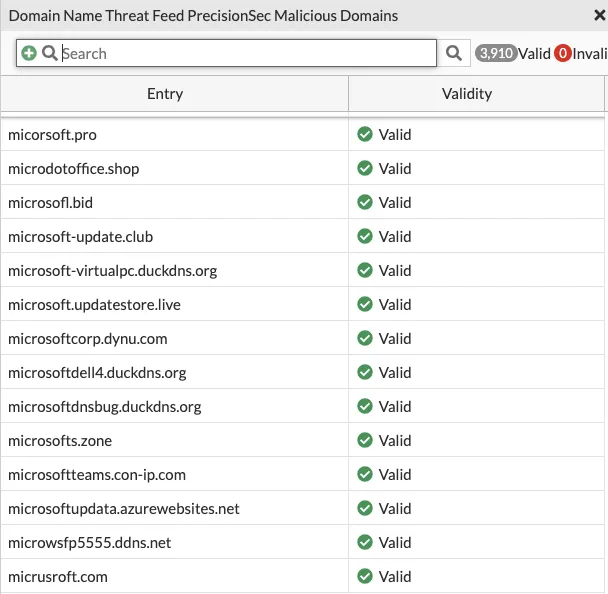
Below you will find a general guide on how to connect a FortiGate firewall to an external blocklist. Please ensure to adjust the steps based on your specific FortiGate model and the current firmware version. This information is based on the Fortinet documentation.
Credentials required. If you have not yet received trial credentials, please request access.
-
Log into the FortiGate Web Interface
- Open your web browser and enter the IP address of your FortiGate firewall admin interface. Log in using your administrator credentials.
-
Go to the ‘Security Fabric’ Section
- On the left-hand sidebar, click on Security Fabric. In the sub-menu that opens, click on External Connectors and then click Create New.
-
Create a New External Blocklist
- Scroll to the bottom of the ‘New External Connector’ page to the Threat Feeds section and click the type of blocklist you would like to add. For the first example below, select IP Address.
-
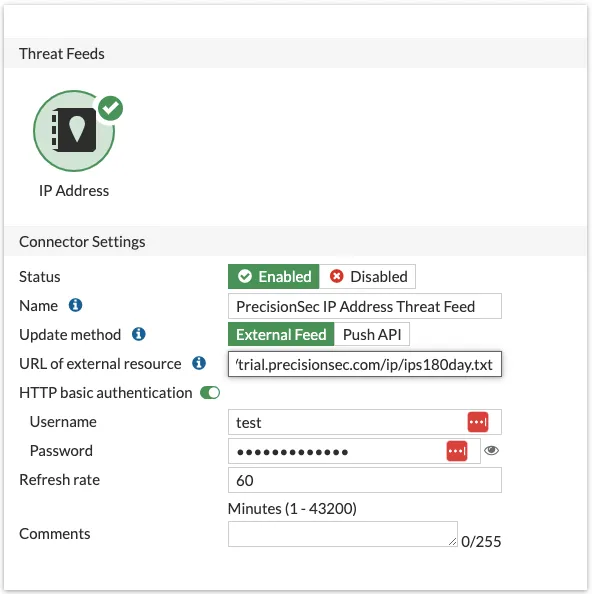
Enter the Details for the IP Blocklist
- Name: Give the blocklist a unique name, such as “PrecisionSec Malicious IP Addresses”
- Use the default Update method of External Feed
- URI of External Resource:
https://trial.precisionsec.com/ip/ips180day.txt - Toggle the HTTP Basic Auth switch to On
- Enter the username and password you were provided
- Refresh Rate: PrecisionSec recommends setting this to 60 minutes
- Click OK and ensure the toggle on the new card is enabled
-
Enter the Details for the Domain Blocklist
- Name: Give the blocklist a unique name, such as “PrecisionSec Malicious Domains”
- URI of External Resource:
https://trial.precisionsec.com/domain/domains180day.txt - Toggle HTTP Basic Auth to On and enter your credentials
- Refresh Rate: 60 minutes recommended
- Click OK and ensure the toggle is enabled
-
Enter the Details for the Malware Hash Blocklist
- Name: Give the blocklist a unique name, such as “PrecisionSec Malware Hashes”
- URI of External Resource:
https://trial.precisionsec.com/hash/sha256_180day.txt - Toggle HTTP Basic Auth to On and enter your credentials
- Refresh Rate: 60 minutes recommended
- Click OK and ensure the toggle is enabled
Once all feeds are added, you should see something similar to the following on the External Connectors page:
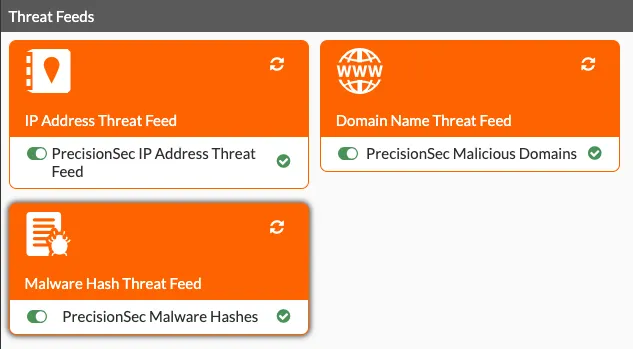
You can view the entries in a feed by mousing over a card and clicking View Entries: