Below you will find a guide on how to connect PrecisionSec Threat Intelligence indicators to your Microsoft Sentinel Threat Intelligence blade.
Credentials required. If you have not yet received evaluation credentials, please request access.
-
Download the following files to your desktop or other local location from our secure server using the credentials you were provided:
https://trial.precisionsec.com/sentinel/network_indicators.csvhttps://trial.precisionsec.com/sentinel/file_indicators.csv
-
From the Azure portal, go to Microsoft Sentinel.
-
Select the workspace you want to import threat indicators into.
-
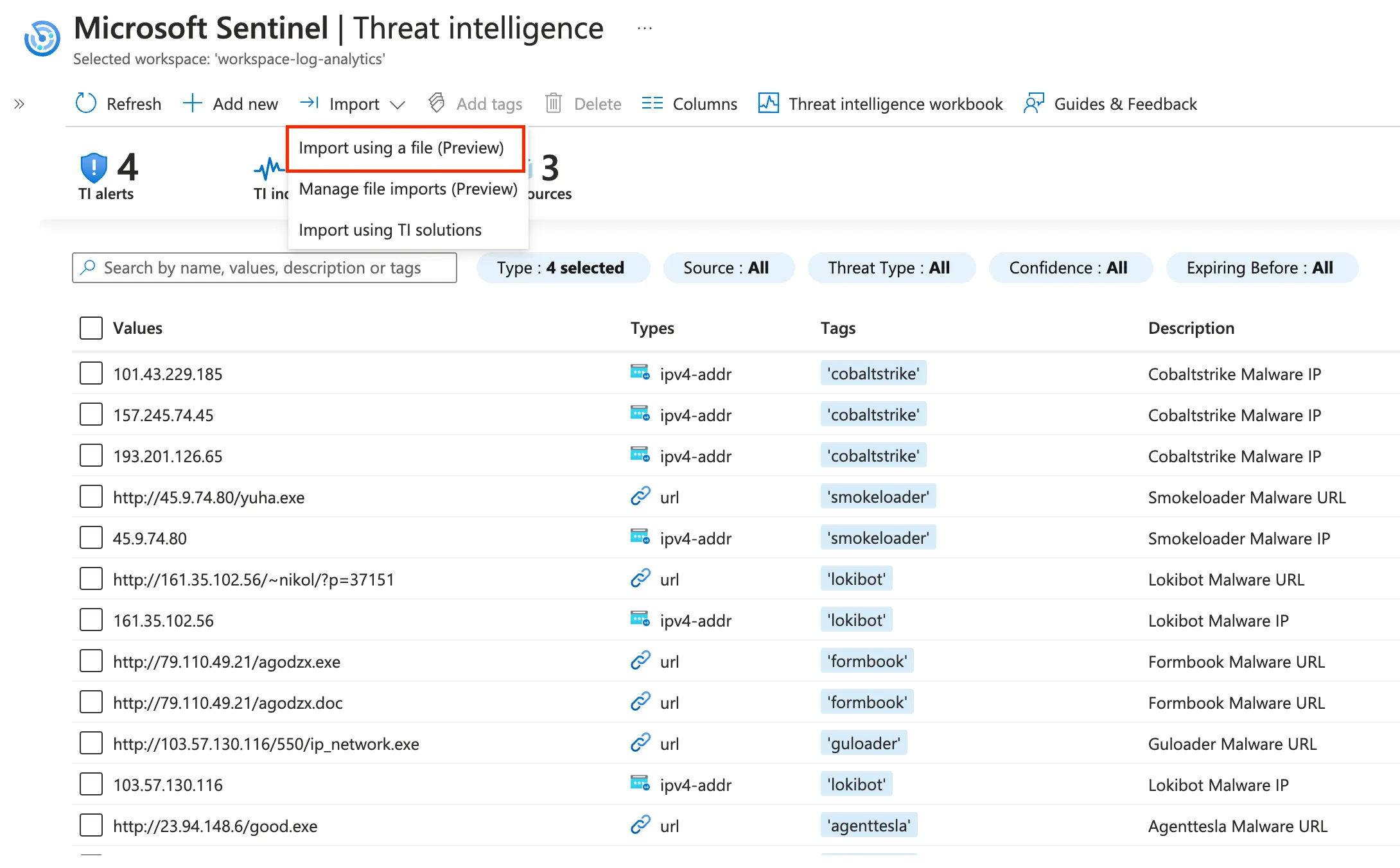
Navigate to the Threat Intelligence blade under the Threat Management heading.
-
Select Import > Import using a file (Preview).
-
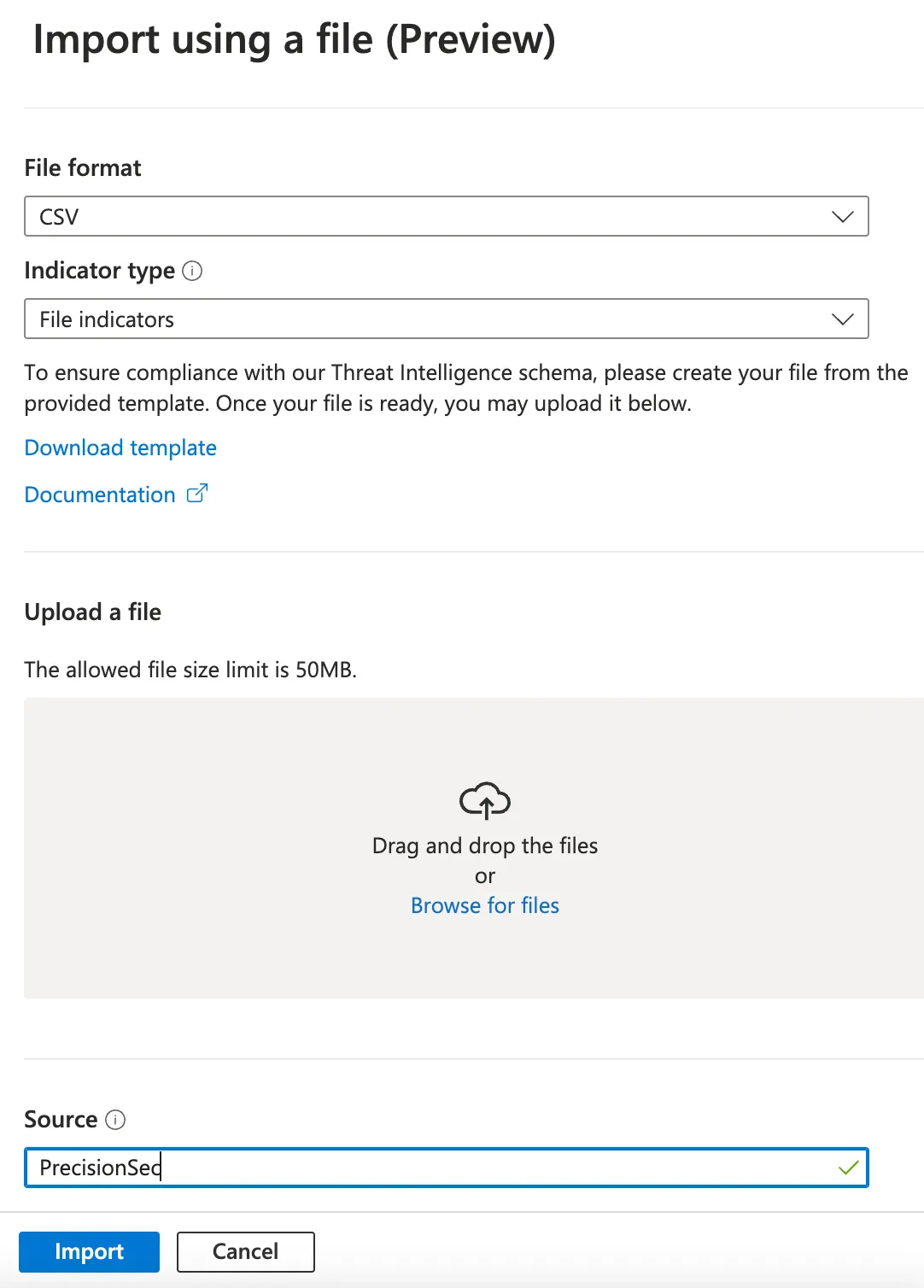
Choose CSV from the File Format drop-down menu.
-
For the Indicator Type dropdown, select File indicators for
file_indicators.csv, or All other indicator types fornetwork_indicators.csv. -
Drag or browse to the corresponding CSV file you downloaded in Step 1.
-
In the Source field, enter “PrecisionSec”.
-
Under If there are invalid indicators, leave the default “Import the valid indicators”.
-
Click Import. You will see a confirmation dialog that the indicators are being uploaded. Shortly after, the indicators should appear in the Threat Intelligence blade in Sentinel.